
Check your device
Confirm your Windows version and processor architecture, or verify that your Mac uses an Apple silicon chip before selecting a download.
Choose the Android emulator built for your Windows PC or Apple silicon Mac. Compare platform requirements, download the matching installer, and follow the setup steps to start running Android games and apps on your desktop.
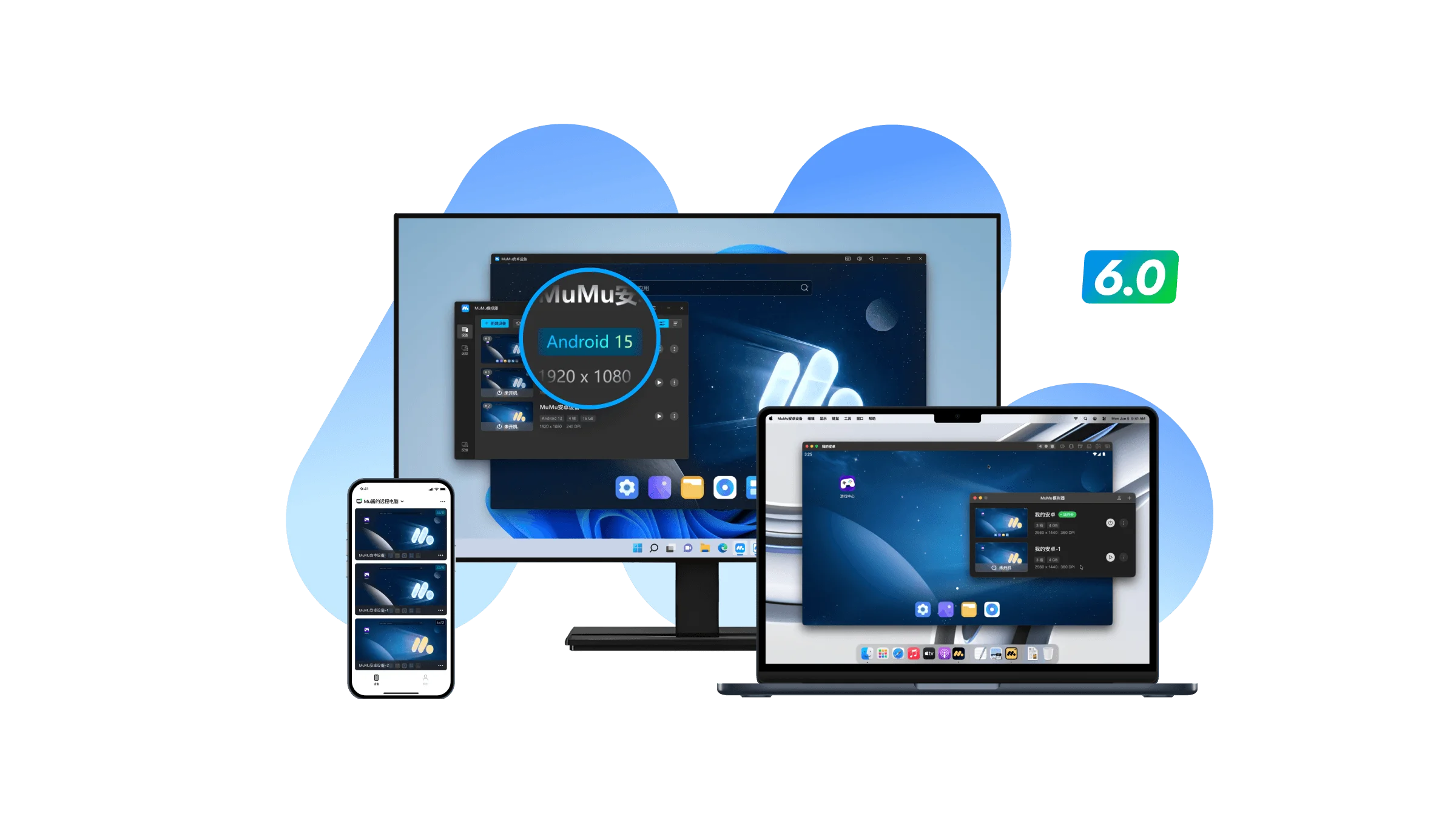

Built for Windows 11, Windows 10, and Windows 8 PCs, with Android game support, keyboard mapping, gamepad controls, high-frame-rate settings, and multi-instance tools.

Designed for Macs powered by Apple silicon, including M-series chips. This version does not support Intel-based Mac computers.
A companion app for remotely accessing supported MuMuPlayer sessions on Windows x86 from an iPhone or iPad. It is not an iOS Android emulator.
A mobile companion app for remotely viewing and controlling supported MuMuPlayer sessions running on a Windows x86 computer.
Check your operating system and processor first, then download the matching installer and complete the initial Android environment setup.
Confirm your Windows version and processor architecture, or verify that your Mac uses an Apple silicon chip before selecting a download.
Select the matching desktop version, save the Windows installer or macOS DMG file, and open it after the download finishes.
Follow the on-screen installation prompts, launch MuMuPlayer, and allow the Android environment and required components to initialize.
Find supported titles through the app center or import a compatible installation file, then configure graphics, keyboard controls, gamepads, or additional instances.
Visit the help center for Windows virtualization, Apple silicon compatibility, Windows on Arm, installation errors, startup issues, graphics settings, and Pocket MuMu connections.